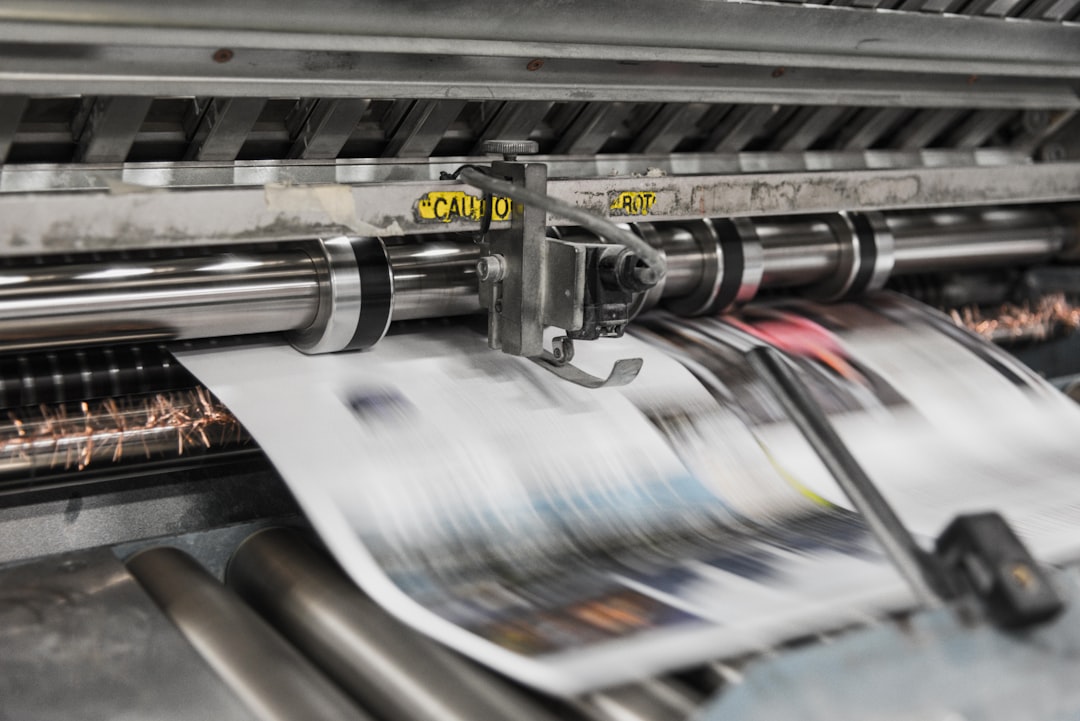
If you sell reprints, posters, or art prints, organization is not a back-office detail. It is the difference between shipping the right edition in minutes and losing an afternoon hunting through vague filenames, duplicate exports, and half-labeled folders. For creators and publishers, a disciplined system also protects brand consistency, keeps editions clean, and makes bulk print orders far easier to manage. The best setups combine cloud photo storage, photo organization tools, and a dependable photo backup service so your print-ready originals are always available, searchable, and safe.
This guide gives you a practical framework you can implement immediately. It is built for content creators, influencers, publishers, and teams who need to work faster with better tools, maintain reliable archives, and scale from one-off prints to large batch fulfillment. If you also manage client galleries or family collections, the same principles apply: clean structure, strict naming, and searchable tags. And because print workflows often involve approvals and handoffs, we will also reference patterns from modular toolchains and operational reliability practices from fleet reliability systems.
1) Why organization matters more for prints than for ordinary photo storage
Print workflows are edition-sensitive
A print archive is not just a place to store pretty images. It is a working inventory of masters, crops, edition variants, printer proofs, and final production files. If a poster is updated from version 2 to version 3, the wrong export can create expensive reprints and damaged trust. A publisher that handles multiple campaigns or seasonal drops needs a system that distinguishes original capture files from approved print assets and final retail-ready outputs.
In practice, good organization reduces mistakes in three places: selection, production, and fulfillment. Selection becomes easier because the best candidates are grouped and labeled by project, format, and status. Production becomes easier because printer-ready files are separated from working drafts and social media exports. Fulfillment becomes easier because bulk order packs can be assembled from consistent folders without checking every file manually.
Creators need speed, not just storage
Many people think cloud photo storage solves organization by itself, but storage without structure just creates a larger junk drawer. If you want to print photos from phone captures, export from desktop edits, or repurpose images across campaigns, you need a tagging convention that lets you surface the right original instantly. That is especially true for photo storage for photographers, who often manage hundreds or thousands of near-duplicate files from the same shoot.
Creators also benefit from the same discipline when sharing with teams or clients through premium client experiences and clear internal knowledge hubs. When your archive is intuitive, every handoff feels more professional. It also saves time when collaborators need access to the latest approved artwork.
Reliable archives protect revenue
For publishers and print sellers, a well-structured archive is revenue protection. Losing the original master file means re-editing, re-exporting, or recreating assets from scratch. In some businesses, that can delay a launch by days or prevent a reprint entirely. A trustworthy backup and organization system acts like insurance for both creative labor and future sales.
That is why many teams pair automatic photo upload with strong metadata conventions and shared review folders. This mirrors the logic behind resilient operations in other industries: if a process must work under pressure, it needs redundancy, visibility, and standardization. Your print archive should behave more like a production system than a casual folder on a laptop.
2) The ideal folder architecture for reprints and posters
Use a simple top-level hierarchy
The goal is not a perfect folder tree. The goal is a structure your future self, assistant, or printer can understand immediately. For most creators and small publishers, the best pattern is a top-level hierarchy based on project, edition, and output status. Start with broad categories, then split into subfolders only when necessary.
A practical template looks like this: 01_Master_Archive, 02_Working_Files, 03_Approved_For_Print, 04_Print_Ready_Exports, 05_Printer_Proofs, and 06_Shared_Assets. That gives every file a clear home and makes it easy to separate artistic exploration from production assets. If you need client-specific collections, create a separate parent folder per client or publication before applying this model inside each account.
Organize by project first, then by version
Many people organize by year alone, which works for casual memories but fails for commercial printing. A poster archive should be project-first because your search is usually driven by product, campaign, or title. Within each project, use versioning that explicitly identifies draft status, crop ratio, and print size. That way, a 24x36 poster and a 18x24 poster can coexist without confusion.
For example, a folder path might read: Project_Name / Edition_01 / Print_24x36 / Approved. If you later release a second edition, duplicate the project folder and increment the edition number. This makes it much easier to compare versions or respond when a printer asks which file should be used for the next run.
Keep working files separate from deliverables
One of the most common organizational mistakes is mixing exports, layered source files, proofs, and social crops in the same folder. That saves a minute today and costs an hour tomorrow. Separate by purpose, not by convenience. Working files should be messy enough to allow experimentation, while deliverables should be pristine and final.
This separation is especially useful when using modular workflows across devices and apps. A designer might edit on a laptop, review on a tablet, and approve on a phone. If files are categorized consistently, the device you use stops mattering because the structure carries the context.
3) A naming convention that prevents chaos
The best filenames are boring and searchable
Your file names should communicate four things at a glance: what the asset is, what edition it belongs to, what size or format it uses, and whether it is final. A strong naming pattern might look like this: ProjectName_Edition01_24x36_Final_v03.tif. That may seem plain, but it is exactly the kind of clarity printers and production teams love. It also improves the odds that search filters will return the correct file quickly.
Avoid vague names like final-final-newest.jpg or poster1_ok2.png. Those might survive in a personal notebook, but they become dangerous when dozens of files exist across campaigns. If you want consistent outputs, the file name needs to function like a label on a warehouse shelf, not a caption in a chat thread.
Choose a convention and keep it stable
Consistency matters more than the specific format you choose. Pick one naming formula and train everyone who touches the archive to use it. A reliable formula usually includes: project slug, edition number, intended output, orientation, color profile, version, and approval status. The more your team prints, the more valuable that consistency becomes.
For example: HarborSeries_Ed02_Poster_18x24_CMYK_v04_Approved.tif. If a printer needs a web preview, use a clearly different extension and suffix, such as HarborSeries_Ed02_Poster_18x24_Web_v04.jpg. This avoids confusion between production files and preview assets while preserving a single naming family.
Use naming to support bulk ordering
Bulk orders become dramatically easier when filenames encode print intent. If the printer receives a folder containing ten poster variants, each one should tell the production operator everything necessary to sort and set up the run. That reduces email back-and-forth and lowers the chance of a wrong-size output.
For teams that regularly place large orders, this is as important as any logistics checklist. It echoes how professionals in other operational fields reduce friction through standard labels and process discipline. If you want more background on systems thinking, see how speed and reliability balance in high-volume workflows.
4) Tagging systems that actually help you find print-ready originals
Build tags around decisions, not aesthetics alone
Tags should answer the question, “Why would I need this file?” rather than only describing what it looks like. A great tagging system includes content tags, workflow tags, rights tags, and print-readiness tags. For example, you might tag an image as portrait, campaign-spring-2026, licensed, approved-print, and 24x36. That makes the file useful for search, planning, and compliance.
Do not over-tag to the point where search becomes noisy. Too many redundant labels make it harder to distinguish significant metadata from decorative metadata. A lean system is usually better: one tag for subject, one for project, one for rights, and one for print status.
Use controlled vocabularies
The fastest way to ruin searchability is to let every person invent their own spelling. If one team member uses social, another uses social-media, and another uses socials, your search results become fragmented. Create a controlled vocabulary list and treat it like a style guide. That list should define approved tags, abbreviations, and capitalization rules.
For example, standardize crop tags as square, portrait, landscape, and panorama. Standardize print status tags as raw, edited, proofed, approved-print, and archived. Standardization is boring, but it is exactly what turns an archive into a production asset rather than a digital attic.
Separate rights and licensing from creative tags
Creators and publishers often forget that licensing can matter as much as image quality. A file might look perfect but still be unusable for a new poster run if its usage rights have expired or if model/property restrictions apply. Tagging licensing clearly protects you from accidental misuse and helps collaborators know what can be printed, shared, or resold. If you need a deeper model for asset control, the logic resembles licensed asset packaging workflows in design libraries.
Useful rights tags include owned, licensed-one-time, licensed-renewable, editorial-only, and requires-release. If a photo is tied to a specific publication window or campaign, add an expiration note in metadata or the folder README. This saves enormous time when a dormant image becomes attractive again months later.
5) Recommended templates for creators, influencers, and publishers
Template A: Solo creator selling posters online
If you are a solo creator, the simplest system is usually best. Start with one master project folder for each collection, then split into source, edits, exports, proofs, and fulfillment. That gives you enough structure to scale without making your archive feel like enterprise software. The key is to keep the system light enough that you will actually use it every day.
A basic template might be: Collection_Name / 01_Source / 02_Edits / 03_Exports / 04_Proofs / 05_Store_Listings. Put your final high quality photo prints file in 03_Exports, not in the edit folder. If you also publish behind-the-scenes images or social crops, add a dedicated 06_Social folder to avoid mixing marketing files with production masters.
Template B: Publisher managing recurring editions
Publishers need edition control more than anyone else. Create one parent folder per title, then subfolders for each edition, and inside each edition, separate print sizes, cover variants, and proof stages. The publisher’s job is to preserve continuity across runs while still allowing controlled changes. A clean edition structure makes that possible.
For recurring products, include a changelog document in the edition folder. Record what changed, why it changed, who approved it, and when it was released. This is especially useful for posters or reprints that may go through different paper stocks, crop corrections, or color adjustments over time.
Template C: Content team with multiple contributors
If several people contribute images, approvals, and orders, use a shared protocol across your content pipeline. The best setup includes a shared intake folder, a review folder, and a locked print-ready folder. Contributors upload only into intake, editors curate into review, and production moves approved files into the locked area. This prevents unvetted or duplicate assets from entering fulfillment.
It also helps to designate one person as metadata owner. That person is responsible for ensuring tags, filenames, and approvals are consistent before anything is sent to a printer. This role may sound small, but it prevents enormous downstream confusion.
6) A comparison table: folder structures, tagging approaches, and when to use them
Below is a practical comparison of common organization models. Use it to decide whether you need a simple solo setup, a more robust publisher structure, or a collaborative system with strong control points.
| Model | Best For | Strengths | Weaknesses | Ideal Use Case |
|---|---|---|---|---|
| Year-Based | Casual archives | Simple to understand | Poor for editions and product variants | Personal memories, not print catalogs |
| Project-Based | Creators and publishers | Fast retrieval by title or campaign | Needs consistent naming | Posters, reprints, collections |
| Edition-Based | Recurring products | Clear version control | Can become nested if overused | Book reprints and poster runs |
| Workflow-Based | Teams and agencies | Great for approvals and production | Harder for non-team users | Shared photo albums and client delivery |
| Tag-First | Large libraries | Powerful search across categories | Requires discipline and governance | Photo organization tools with metadata search |
In practice, many teams use a hybrid of project-based folders plus tag-first search. That gives you strong navigation plus flexible discovery. If your archive is growing quickly, that hybrid approach tends to scale better than a single rigid hierarchy.
Pro Tip: The best system is the one you can search in under 10 seconds. If a helper, client, or printer cannot find the right file quickly, the structure is too complex.
7) How to design tags for bulk orders and consistent editions
Tag by production status
To streamline bulk orders, add a production-status tag to every printable asset. Good options include needs-review, color-check, proof-approved, ready-to-print, and sent-to-printer. These tags move files through the pipeline and prevent old exports from being re-ordered accidentally. They also help you batch the right assets together for a vendor.
When several posters are released as a series, add a series tag and an edition tag together. That way, you can filter to all edition 2 files in a given collection without touching earlier approved versions. This is especially useful when working with multiple paper sizes or specialty finishes.
Tag by print specs
Print specs should be searchable, not buried in an email thread. Tags like 24x36, 18x24, matte, gloss, CMYK, and 300dpi make it easy to identify which export can go straight to production. If your printer has specific bleed or margin requirements, add a tag for that too, such as bleed-0.125.
These technical tags are a major time saver when you handle multiple print vendors. They prevent mismatches between a file intended for e-commerce preview and a file intended for the print press. They also help sales or operations teams answer customer questions faster, especially when using metrics-driven readiness practices to keep operations consistent.
Tag by rights and audience
Many creators sell to both consumers and businesses, which means the same image may have different permitted uses. Add tags such as consumer-sale, editorial, commercial-ok, or brand-collab. When a library is searchable by rights, you reduce legal risk and avoid embarrassing last-minute discoveries. This matters especially for influencers who repurpose content across social, print, and licensing deals.
If you collaborate with family members or clients through shared galleries, keep audience-based tags visible so everyone understands what can be used where. The result is a cleaner handoff and fewer permission surprises.
8) Cloud photo storage, backup, and upload habits that keep archives safe
Automatic upload should be your default
The strongest organization system is useless if the original file is missing. That is why automatic photo upload should be enabled wherever possible, especially on devices used for field shoots, events, or travel. Your phone is often the first capture point, and if files do not reach the archive quickly, they are at risk of accidental deletion, device damage, or forgotten transfers. A good photo backup service reduces that risk dramatically.
Look for tools that sync across devices, preserve metadata, and allow restore from original quality files. The workflow should be simple enough that you never need to remember to “do the backup later.” For teams that create constantly, this becomes a foundational habit rather than a technical nice-to-have.
Use cloud storage as the searchable source of truth
Your cloud library should function like a single source of truth for approved assets, not just a mirror of every device folder. Keep masters, final exports, and print-ready originals in clearly marked locations inside your cloud photo storage. That makes it easier to retrieve files from anywhere, share them with collaborators, and push them into print workflows without chasing down old devices.
If your archive is especially large, use album-level segmentation with consistent naming, plus filters or smart tags for reuse. The same approach that makes long-term career systems sustainable also makes long-term archives usable: fewer ad hoc decisions, more repeatable habits.
Backups protect both creative and commercial work
For commercial creators, backups preserve the relationship between a finished image and the revenue it can generate. If an influencer’s popular poster sell-through depends on a small number of high-performing images, losing the original source files can interrupt inventory for weeks. A strong backup system is not only about safety; it is about preserving sales velocity.
That is also why many teams retain at least two recoverable copies: one cloud archive and one secondary backup location. When the archive is treated as business infrastructure, rather than a personal album, recovery planning becomes part of standard operations instead of an afterthought.
9) How to organize shared photo albums for clients, printers, and collaborators
Use shared albums as decision spaces
Shared photo albums are excellent for review, but they should not double as your master archive. Give clients or collaborators a focused album containing only the candidates or final selections they need. That keeps the conversation clean and prevents accidental edits to the wrong file. The archive stays private, while the shareable album becomes a curated workspace.
For a smoother client experience, pair your shared album with a short note explaining what actions are allowed: comment, select, download, or approve. This reduces ambiguity and speeds decisions. It is similar to how well-designed customer recovery systems minimize uncertainty and streamline escalation paths.
Build printer handoff albums with exact intent
When sending files to a printer, create a dedicated handoff album or folder that contains only print-ready assets and the related spec sheet. Include one document that lists dimensions, paper, finish, bleed, edition number, and approval date. A printer should be able to produce from this package without needing to infer which asset is current. Clear handoff packets reduce errors and save costly rework.
For larger orders, group files by run or batch. That makes it easier to split orders across media types, locations, or release dates. If a batch changes midstream, the revised package can be reissued without disrupting the entire archive.
Control permissions with care
Not every collaborator should see every file. A model that works well is to give broad access to intake and review folders, then restrict print-ready and licensed assets to core operators. This protects privacy, avoids premature releases, and helps maintain edition integrity. It also aligns with the concerns many creators have about access control and image licensing.
For a deeper framing on secure access and team-facing standards, the principles in privacy and compliance workflows translate well to creative archives. Permissions should be as intentional as the creative process itself.
10) A practical workflow you can adopt this week
Step 1: Audit your current library
Start by identifying your top ten most important projects, collections, or poster runs. Move those into a new standardized structure before touching the rest. A focused cleanup is better than a sprawling attempt to fix everything at once. This first pass will also reveal where your biggest organizational gaps are.
As you audit, mark files into buckets: master, working, proof, final, archive, and delete. If you already use multi-device workflows, make sure the same taxonomy works on desktop and mobile. The system should not depend on a single device or app.
Step 2: Establish your standard templates
Create one folder template for posters, one for reprints, and one for client delivery. Do not improvise each time a new project starts. Templates reduce decision fatigue and make delegation possible. They also make onboarding easier if an assistant, editor, or fulfillment partner needs to help.
Document the template in a short internal guide. Include naming rules, tag categories, file format standards, and where to place approvals. If the guide is short, people will use it. If it is buried in a long deck, people will ignore it.
Step 3: Automate ingest and tagging where possible
Automation should handle the repetitive work, not the editorial judgment. Use automatic photo upload for ingestion, then apply rules for renaming, tag suggestions, or destination folders where your platform supports it. The more consistently files enter your archive, the easier everything downstream becomes. Search, sharing, and printing all improve when the intake stage is reliable.
For teams exploring smarter automation, the mindset behind automation recipes is useful: start with a few high-value rules, measure the time saved, and expand only when the process stays stable. That keeps the system manageable rather than overengineered.
11) Common mistakes to avoid
Mixing social exports with print masters
This is the classic archive mistake. A social export is optimized for speed and platform format, while a print master is optimized for resolution, color, and production integrity. When they live together without obvious labels, the wrong file eventually gets used. Keep them in separate folders and add explicit suffixes to filenames.
Do not rely on visual memory either. What looks right on screen may be too small or compressed for print. The file name and folder path need to do the talking.
Using inconsistent tags across team members
Inconsistent tags make libraries feel larger than they are because search results fragment. If each collaborator invents a new category, the archive stops being searchable. Fix this by publishing a controlled vocabulary and reviewing it quarterly. A ten-minute cleanup meeting can save hours of future searching.
When in doubt, prefer fewer, more meaningful tags. It is better to have a small, highly reliable tag set than a large tag cloud that nobody trusts.
Failing to preserve edition history
Some teams overwrite old files the moment a new version is approved. That makes it impossible to answer basic questions later: Which edition sold best? What changed between the first and second run? Which file did the printer use for the holiday batch? Preserve history so you can reproduce successful results and diagnose problems.
This is where a changelog and clear version suffixes become essential. They turn your archive into a record of decisions, not just a pile of outputs.
12) The final system: a creator-friendly standard you can trust
What “good” looks like in practice
A strong print archive should let you find any approved original in seconds, confirm whether it is licensed for use, and send the right file to a printer without reopening old threads. It should also allow your team to distinguish between personal captures, collaborative assets, and commercial print outputs. If the system works, it disappears into the background and becomes part of the workflow rather than a separate chore.
That is the real value of organization: not tidiness for its own sake, but lower friction and higher confidence. A clean archive supports faster launches, fewer mistakes, and a more professional brand experience. And when your library lives in dependable cloud photo storage with strong backup habits, you gain both operational speed and peace of mind.
Why this matters for growth
As your print business grows, the archive becomes a sales engine. Faster search means faster restocks. Cleaner editions mean better quality control. Better permissions mean safer collaborations. In other words, organization is not an administrative overhead; it is part of the product.
If you are building a creator business around reprints, posters, or licensed art, your system should be able to scale from one person to many, from one edition to many, and from one device to many. That is the promise of disciplined folder architecture combined with metadata and backups.
Start small, but standardize now
You do not need a giant migration project to improve your archive. Start with one collection, one naming rule, and one tag set. Then apply the same standard to every new upload. Small consistency compounds quickly, especially when your goal is to find print-ready originals fast and maintain clean edition control.
For creators, publishers, and families alike, the path to a calmer archive is the same: automate intake, keep masters protected, and make every file easy to understand at a glance. That is how you build a system that supports both creative freedom and operational reliability.
Pro Tip: If you can’t explain a folder structure in one sentence, it is probably too complicated for bulk printing workflows.
FAQ
What is the best folder structure for reprints and posters?
The best structure is project-based, with separate folders for master files, working files, approved-for-print assets, print-ready exports, proofs, and shared assets. This keeps versions organized and makes it easy to retrieve the correct file when reordering or updating a print run.
Should I organize by year, project, or edition?
For print products, project first is usually best. Add edition folders inside the project, and use year only as a secondary label if needed. Year-based systems are fine for casual libraries, but they are weak for recurring commercial products.
What tags should I use for print-ready files?
Use tags for project, edition, print size, color mode, production status, rights, and audience. Good examples include approved-print, 24x36, CMYK, licensed, and ready-to-print. Keep the vocabulary controlled so the same file can always be found the same way.
How do I prevent accidental use of the wrong version?
Use strict version numbers in filenames, separate folders for final exports, and a locked archive for approved files. Never keep drafts and final prints together without clear labels. A changelog also helps preserve history and avoid overwriting earlier editions.
Do I still need backups if I use cloud photo storage?
Yes. Cloud photo storage is helpful, but you should still treat backups as separate protection. Use automatic photo upload, preserve original-quality files, and make sure you have a recoverable copy if an account issue or sync error occurs.
How can shared albums help with print production?
Shared albums are ideal for review and approvals. They let clients, editors, or printers view only the files they need while the master archive stays private and clean. They are especially useful for collaboration, proofing, and handoff packets.
Related Reading
- The Evolution of Martech Stacks: From Monoliths to Modular Toolchains - A useful lens for building flexible creative workflows that scale.
- Reliability as a Competitive Advantage: What SREs Can Learn from Fleet Managers - Practical ideas for making your archive and delivery process more dependable.
- Designing Conversion-Focused Knowledge Base Pages (and How to Track Them) - Helpful if you document your print workflow for a team.
- Privacy, security and compliance for live call hosts in the UK - Strong guidance for access control and permissions thinking.
- 9 Ready-to-Use Automation Recipes for Marketing and SEO Teams - Great inspiration for automating repetitive archive tasks.