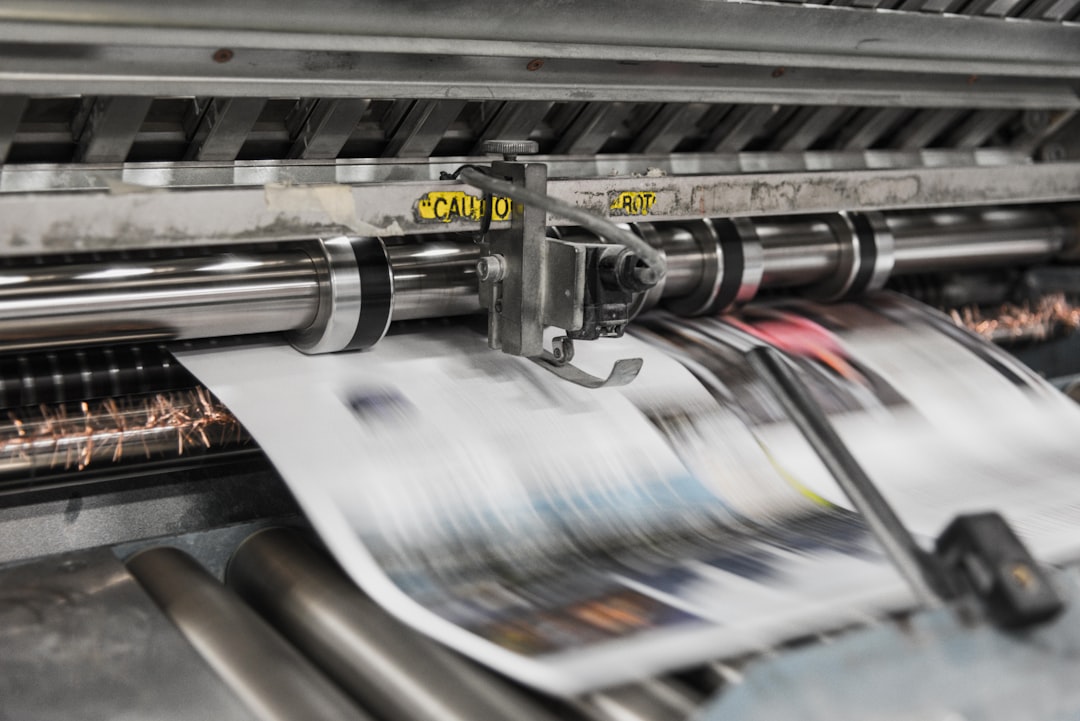
If you create content from your phone, you already know the workflow: capture fast, edit faster, post now, and keep moving. But when it comes time to print photos from phone, the rules change. What looks great on a 6-inch screen can fall apart in a physical print if the resolution is too low, the crop is wrong, or the lighting was edited too aggressively. The good news is that creators do not need a studio setup to produce high quality photo prints; they need a repeatable checklist, a reliable photo backup service, and a clean path from capture to online photo printing.
This guide is built for influencers, publishers, and creators who want a fast, reliable system for turning mobile photos into prints without babysitting files. If your library is scattered across devices, start by learning how to build a stronger workflow with escapable content workflows and organized assets that scale. For creators who manage client folders, family albums, or sponsor deliverables, the real advantage comes from pairing automatic photo upload with trustworthy cloud photo storage and simple photo organization tools. The result is fewer lost files, less stress, and much better print outcomes.
1. Start with the right capture settings before you press the shutter
Use the highest resolution your phone offers
The best print file begins at the moment of capture. Most modern phones can shoot far more detail than social media requires, so always use the native camera at full resolution when your goal is print. Avoid screenshotting images, pulling compressed versions from messaging apps, or exporting from platforms that reduce quality, because those shortcuts can strip away detail that printers need. For general planning, think in terms of pixels rather than just megapixels, since the final printable size depends on the actual image dimensions.
A practical rule: if you want an 8x10 print, you typically need around 2400 x 3000 pixels for a clean result at 300 DPI. For larger poster-style pieces, you need even more detail or a closer viewing distance. If this seems abstract, compare it to how brands think about asset scalability in evergreen content systems and platform scaling: the source file has to be strong enough to survive repurposing. A tiny or heavily compressed phone image may look fine in a feed, but print exposes every weakness.
Lock focus, exposure, and color before you shoot
On a phone, the camera often tries to “help” too much. Tap to focus on your subject, then slightly lower exposure if highlights look bright, especially on skin, glass, white clothing, or sky. Overexposed highlights are much harder to rescue later than slightly darker shadows. If your phone supports RAW capture, use it when you expect to print, because RAW gives you more flexibility for color correction and highlight recovery.
Creators who work in fast-moving environments can treat this like a field checklist. Much like the planning discipline described in a smart packing checklist or the workflow logic in mobile field tools, success comes from removing guesswork. When you standardize focus, exposure, and framing, your print quality becomes much more predictable.
Mind the light first, not the edit
Natural, even light is still the easiest path to print-worthy results. Window light, open shade, and soft overcast conditions usually produce cleaner tonal transitions than harsh midday sun or mixed indoor lighting. If you must shoot indoors, move closer to the light source and avoid letting bright windows blow out the scene. The fewer lighting problems you bake into the original file, the less editing you will need later.
Pro Tip: If your subject is important for print, take three versions: one with normal exposure, one slightly brighter, and one slightly darker. This bracketed approach gives you a backup if the “best” shot turns out to be clipped or noisy after review.
2. Understand print resolution without getting lost in technical jargon
DPI, PPI, and why viewers care more than creators think
Print conversations often get tangled in terms like DPI and PPI. In simple terms, your phone image has a pixel grid, and printers translate that grid into ink on paper. The key question is whether the photo has enough pixels for the intended size. For close-viewing prints like mini books or desk frames, you want more density. For posters viewed from a few feet away, you can often get away with slightly lower resolution because the human eye is less sensitive at a distance.
Think of this like planning for audience reach in publisher revenue forecasting or choosing among formats in format ROI decisions: the right output depends on the use case. A phone picture intended for a 4x6 print is not the same as one intended for a 24x36 wall piece. Know the final destination before you crop, enhance, or upload.
Use a simple size checklist before uploading
Before you send anything to print, check the pixel dimensions in your gallery or editing app. If your phone image is under 2000 pixels on the short side, be cautious about printing anything larger than a small photo. Between 2000 and 3000 pixels, you can usually handle standard prints well if focus is sharp. Anything higher gives you more room for crop adjustments, poster sizes, and minor upscaling.
This is where a good photo search and tagging workflow helps. When your library is searchable, you can compare alternate shots, spot the best-resolution file quickly, and avoid printing a lower-quality duplicate by mistake. That kind of organization matters even more for creators who manage hundreds or thousands of images across campaigns.
Know when upscaling helps—and when it does not
AI upscaling tools can rescue some images by smoothing edges and increasing usable size, but they cannot replace detail that was never captured. If the original photo is blurry, underexposed, or heavily compressed, upscaling may make it look larger without making it truly better. Use it as a last-mile improvement, not as a replacement for strong source quality.
A useful habit is to test one print at a smaller size before committing to a huge run. This reflects the same low-risk thinking you see in simulation-driven workflows and controlled testing environments: validate the result before scaling it up. If the preview print looks soft, your final poster will likely show the same problem more clearly.
3. Crop with print geometry in mind, not just social media framing
Match the aspect ratio to the product
Many creators lose print quality simply because they crop too early for Instagram or too tightly for a story format. A square, vertical, or wide crop might work online, but the print service may need a different ratio. Before finalizing the edit, decide whether you are printing a standard photo, a square keepsake, a poster, or a gallery-style wall piece. Each format has different crop demands, and forcing the wrong ratio can cut off hands, hair, text, or negative space that gives the image breathing room.
If you want a brand-safe, client-friendly workflow, use the same care you would use when designing premium experiences like those discussed in luxury client experience planning. Small details matter. A well-cropped portrait signals professionalism; a badly cropped one feels rushed, even if the photo itself was excellent.
Keep important subjects away from the edges
Print trims are not always perfectly forgiving. Leave room around faces, hands, product edges, and text overlays so that minor shifts in cropping do not ruin the composition. This is especially important when printing event photos, behind-the-scenes shots, and branded content where part of the frame carries meaning. Safe margins make prints feel intentional instead of accidental.
Creators with large archives should use face tagging and people search to find alternate compositions quickly if the first crop does not fit. That saves time and lets you choose the version that was genuinely built for print rather than forcing a social crop into a physical format.
Crop for the final paper size, not the phone screen
Your phone screen can hide composition issues because everything is small and centered. Zoom in, then preview the image at the exact size you plan to print. Many print failures happen when creators assume a crop looks good because it works on mobile, only to discover that the image becomes awkward on a larger surface. Build the habit of checking the final aspect ratio before upload.
For broader guidance on making design choices that work across channels, the same mindset appears in product visualization and creative re-framing strategies: the strongest version of the asset is the one adapted to the medium, not the one arbitrarily copied from another channel.
4. Fix lighting and color with mobile editing tips that preserve detail
Correct exposure before you overdo filters
Mobile editing apps make it tempting to crank contrast, clarity, and saturation until the image pops on-screen. But printed paper is less forgiving than a glowing phone display. Heavy contrast can crush shadows, and oversaturation can make skin tones or product colors look unnatural. Start with exposure, highlights, shadows, and white balance before touching creative filters. Aim for realism first, style second.
That approach mirrors practical quality control in many creator workflows, including spotting misleading outputs and accessible design systems. When you preserve the truth of the image, you preserve more options in the printing stage. Over-edited files often look dramatic online but disappoint in print because the tones no longer transition naturally.
Use selective edits instead of global fixes
If one face is too dark or one corner of the scene is too bright, adjust only the problem area instead of the whole image. Selective edits protect the rest of the file from unnecessary changes. This is especially helpful with travel photos, event shots, and lifestyle content where the subject sits in mixed light. A subtle local correction often prints more elegantly than a full-image filter.
If your workflow involves frequent posting and printing, store the edited master in a dedicated album and keep the original intact in cloud photo storage. That way, if the edit looks different in print than it does on mobile, you can return to the source file and rework it without starting over.
Calibrate for paper, not just screen brightness
One of the most common print surprises is a file that looked perfect on a bright phone screen and dulls once printed. Phone displays emit light; paper reflects it. To compensate, avoid relying on ultra-bright viewing conditions while editing. Preview your image in a dimmer environment and watch for shadows that may be too dark or highlights that may vanish when printed. If possible, order a small proof before a large run.
Creators who care about consistency often pair this with strong asset management, much like a publisher keeping titles organized in a content library. If you need a smarter system for large visual collections, explore photo organization tools alongside a dependable photo backup service so every edited version is traceable and recoverable.
5. Build a creator workflow from capture to print in minutes
Use automatic upload as soon as the shot is saved
Creators on the move do not have time to manually move every file. Set up automatic photo upload so your best captures are backed up the moment they hit your device. This protects you if your phone is lost, stolen, or damaged, and it also gives you a clean path to later print from the cloud instead of from a cluttered camera roll. The fewer manual transfers you rely on, the fewer opportunities there are for mistakes.
That habit is similar to the logic behind modern scalable systems in agentic-native software and automated notifications: capture once, distribute intelligently, and reduce human error. For creators, automation is not about removing control. It is about making the correct workflow easier than the risky one.
Review, select, and mark print candidates immediately
After a shoot, spend a few minutes rating or favoriting the files that have the best print potential. Look for sharp eyes, clean exposure, balanced framing, and enough resolution for the intended size. Create a “Print Ready” album right away so you are not searching for the same content weeks later. Fast sorting now saves hours later.
For larger catalogs, search and grouping matter as much as shooting skill. A clean library structure supports better reuse, whether you are creating client proofs, family gifts, or your own merchandise. If you want more efficient retrieval, combine photo organization tools with searchable albums and keep printable assets separate from casual content.
Sync directly to print services without passing files through risky apps
The best printing workflow is usually the shortest one. Instead of downloading to desktop, re-uploading to another site, and hoping compression does not occur, connect your cloud library directly to your print service whenever possible. That reduces file handling, avoids version confusion, and preserves quality better than app-hopping. It also makes repeat orders much easier because your favorite images remain ready to print.
If you run creator-branded experiences or client galleries, this streamlined handoff feels much more polished. It echoes the same principle behind premium small-business experiences and reducing platform lock-in: keep control of your assets and make the journey feel seamless for the user.
6. Choose the right print type for the photo’s job
Match finish and size to the image
Not every phone photo belongs on the same paper. Glossy finishes can make colors pop, but they may reveal fingerprints and reflections. Matte finishes reduce glare and can flatter portraits, editorial images, and artful lifestyle shots. If you are printing a scene with deep blacks and rich saturation, consider how the paper stock will influence contrast. The best finish is the one that supports the image, not the one that merely looks premium in theory.
Think of this like merchandising choices in retail campaigns or selecting formats for high-converting launches: the product should match the intent. A family portrait, a product shot, and a travel landscape each benefit from different print treatments.
Decide between photo prints, posters, and art prints
Standard photo prints are ideal for albums, gifts, and frame inserts. Posters work when you want scale and visual impact. Art prints are better when the image has a more curated or gallery-style feel, especially if you expect the viewer to see it as a statement piece rather than a casual memory. Before ordering, ask what the image is supposed to do in the room. That single question prevents a lot of mismatched results.
If you are printing creator content, brand visuals, or branded portraits, the surrounding environment matters too. Ideas from product visualization and craft-focused quality standards are useful here: small material decisions create a noticeably better finished object.
Test one proof before a bulk order
When ordering several copies or a big wall print, proof the file first. A single test print can reveal color casts, unexpected crop issues, or softness that is not visible on screen. That is especially valuable if you edited on a phone under unpredictable lighting. Proofing is the print equivalent of checking analytics before scaling a campaign.
This habit is aligned with the risk-aware thinking behind de-risking complex deployments and the trust-building approach in trustworthy selection criteria. Small verification steps save money, time, and regret.
7. Protect privacy, access, and licensing before you share or print
Control who can see, download, and order
For creators, a print workflow is not only about quality. It is also about control. If you use shared albums or client galleries, make sure only the right people can access the photos that are meant for print. Some images may be public-ready while others contain private family moments, backstage content, or unreleased campaigns. Good access control keeps your work safe and your brand trustworthy.
That same emphasis on permissions appears in privacy-preserving data systems and compliance-minded approval workflows. When people can see only what they are supposed to see, the print process becomes safer and easier to manage.
Keep licensing and usage notes attached to print files
If a photo includes a licensed subject, collaborator, client, or sponsor asset, note the usage rights before printing. That matters if you plan to sell prints, gift them publicly, or use them in a product catalog. Creators who organize their files with clear labels avoid accidental misuse and preserve a clean chain of ownership. A simple naming convention can prevent a lot of legal confusion later.
If you manage multiple audiences, it is worth learning from audience-structure thinking in loyal niche communities and emotionally resonant creator content. The best audience experiences are built on clarity and trust, not ambiguity.
Use backups so a print order never depends on a single device
Never let one phone hold the only copy of a print-worthy image. Automatic sync plus structured backups means you can recover photos even if the original device fails. This is one of the biggest reasons creators invest in a solid photo backup service. Printing should be the final step in a safe workflow, not a gamble against device storage or accidental deletion.
For creators who want to future-proof their process, this is similar to the resilience mindset in resilient small-business planning and shockproofing revenue systems: the most dependable workflows are the ones that survive failure gracefully.
8. A practical print-ready checklist for phone photos
Before you shoot
Check your storage, enable automatic upload, and set your camera to the highest quality setting available. Clean the lens, choose stable lighting, and frame the shot with extra space around the edges if you might print later. If the subject matters, shoot several versions rather than relying on one frame. These simple habits massively improve your odds of getting a great print later.
Before you edit
Review the image at full resolution, confirm it is sharp, and reject any file with obvious motion blur or harsh noise. Fix exposure and white balance first, then make subtle contrast and color adjustments. Save the edited file separately so the original remains untouched in cloud photo storage. That gives you a clean fallback if the print needs a second pass.
Before you print
Confirm the target size, aspect ratio, and paper type. Preview the crop at the actual print dimensions and check that important details are not near the edge. If the piece matters, order a proof before a bulk run. Finally, send the image directly from your cloud library to the print service to avoid extra compression and manual upload errors.
Pro Tip: Keep one album named “Print Candidates” and another named “Printed Final.” This tiny habit makes reorders, gifting, and seasonal updates much faster because you always know which files have already been approved.
9. How creators can turn print photos into a repeatable content asset
Use print assets across campaigns, gifts, and merch
A good phone photo can do more than live on paper once. It can become a thank-you print for brand partners, a premium fan gift, a framed office piece, or part of a limited-edition merch drop. When you treat print-ready files as reusable assets, your content library becomes more valuable over time. That is why strong organization, tagging, and backup are not admin work; they are revenue support.
Creators who think like publishers often build systems around repeatable content engines and audience-driven content strategy. A reusable print archive follows the same logic. The stronger your archive, the easier it is to monetize, gift, and repurpose great imagery.
Make prints part of your brand experience
Prints can deepen audience loyalty because they feel tangible in a way digital content does not. A framed creator portrait, event recap, or thank-you card carries a sense of permanence that a post cannot match. If you are selling or gifting prints, the unboxing, packaging, and presentation should feel intentional. The best experiences are memorable because they are curated end to end.
If that sounds like hospitality, that is because it is. Great brands often borrow from the same principles used in high-end service design and meaningful seasonal gifting. A single thoughtfully printed photo can do more for loyalty than a dozen generic digital touchpoints.
Document what worked so you can repeat it
Once you find a phone-to-print workflow that works, document it: camera settings, editing steps, preferred crop ratios, paper type, and printer settings. This turns one successful print into a process you can repeat under deadline. Over time, that documented system becomes part of your creator infrastructure, not just a one-off win.
That same principle shows up in creator strategy, audience growth, and platform resilience. Whether you are planning content around evergreen IP or protecting your media library with photo organization tools, the winners are the people who turn intuition into repeatable systems.
10. Comparison table: print paths for phone photos
Use this table to choose the best path depending on how much control you want, how fast you need the order, and how important quality is for the final print.
| Workflow | Speed | Quality Control | Risk of Compression | Best For |
|---|---|---|---|---|
| Phone gallery to social app screenshot | Fastest | Very low | High | Casual proofing only |
| Phone export to desktop then upload | Moderate | High | Medium | Experienced users who need manual control |
| Cloud photo storage to print service | Fast | High | Low | Creators who want reliable, repeatable results |
| Edited file saved locally then re-uploaded | Moderate | High | Medium | One-off special prints and proof orders |
| Direct from organized cloud albums | Fast | Very high | Low | Influencers, families, and client galleries |
11. FAQ: printing phone photos without losing quality
Can I really get high quality photo prints from a phone?
Yes. Modern phone cameras can produce excellent prints as long as the image is sharp, well lit, and captured at sufficient resolution. The biggest limitations are usually motion blur, bad lighting, and compression from messaging or social apps, not the phone itself.
What size can I print from a phone photo?
It depends on the pixel dimensions of the file. Smaller images usually work well for 4x6 or 5x7 prints, while larger wall pieces require more detail. If you are unsure, test a small proof before ordering a large poster or art print.
Should I edit on my phone or on a computer?
For most creators, phone editing is enough for exposure, color, and crop adjustments. If you need advanced color work or very precise retouching, a larger screen can help, but many print-ready photos can be prepared entirely on mobile.
What is the safest way to store print-worthy photos?
Use automatic photo upload and keep originals in secure cloud photo storage. That gives you backup, easy search, and protection if your device is lost or damaged. It also helps preserve the best version for future reprints.
Why does my printed photo look darker than it does on my phone?
Phone screens are backlit, while prints are reflected light. That difference often makes prints appear darker. To compensate, avoid over-dark edits and preview your photo in a less bright environment before printing.
How do I avoid cropping mistakes when I print?
Check the final aspect ratio before uploading, keep important subjects away from the edges, and preview the image at the exact print size. If possible, use a service that lets you crop and preview before ordering.
Final takeaway: the best print workflow is simple, safe, and repeatable
If you want better results when you print photos from phone, focus on the fundamentals: capture with enough resolution, light the scene well, crop for the final size, edit gently, and send the file from a reliable cloud library into a trustworthy print service. The biggest gains usually come from reducing friction, not adding more tools. That is why creators who invest in automatic photo upload, cloud photo storage, and photo organization tools tend to print faster and with fewer mistakes.
When your photo workflow is organized, you can move from capture to print without redoing work, worrying about file loss, or compromising quality. That is the real advantage of modern online photo printing: it lets creators turn the best moments from a phone into physical keepsakes, client deliverables, or brand assets with almost no extra hassle. Build the checklist once, and every future print becomes easier.
Related Reading
- Photo Backup Service - Learn how automatic protection keeps print-worthy images safe.
- Online Photo Printing - Explore streamlined ordering options for creators and families.
- High Quality Photo Prints - See what separates premium prints from ordinary output.
- Mobile Editing Tips - Get practical edits that work before sending photos to print.
- Photo Organization Tools - Organize large libraries so your best files are easy to find.