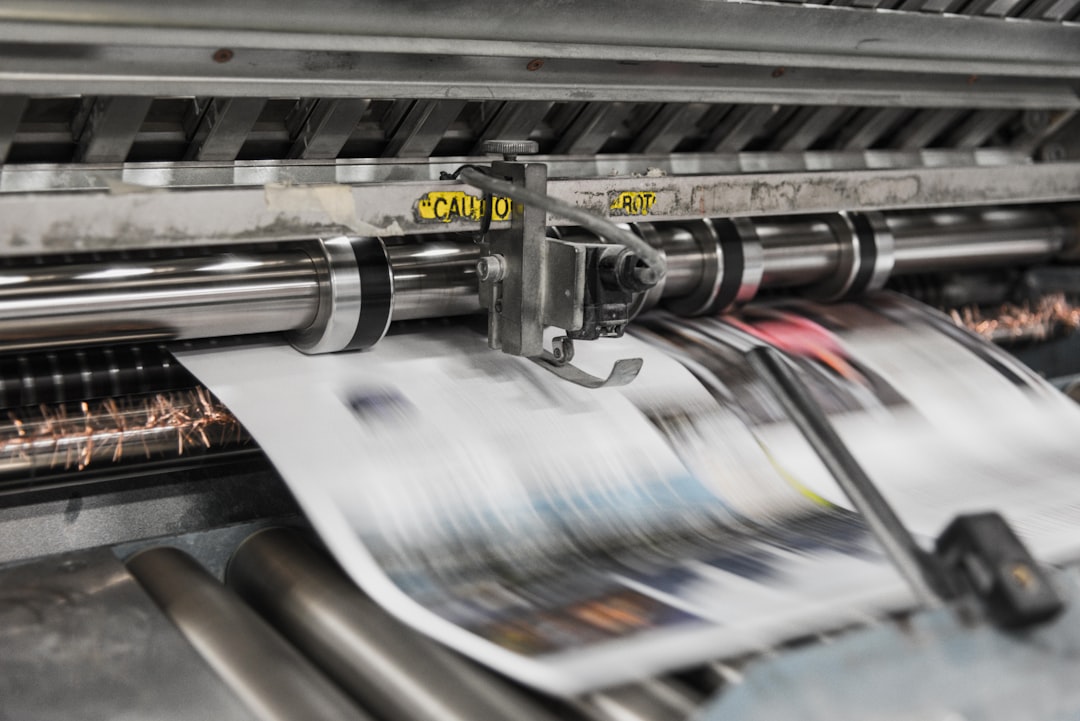
If you create posters or art prints for clients, followers, or your own shop, the difference between “looks great on screen” and “prints beautifully” comes down to a few technical choices made before export. The good news is that you do not need to be a prepress engineer to get consistent results. You do need a repeatable workflow for resolution, color management, file formats, and final file prep so your high quality photo prints match your intent as closely as possible. If you already manage visual assets with photo organization tools and keep originals in cloud photo storage, you are halfway to a reliable print pipeline.
This guide is a technical but accessible deep dive built for creators who care about quality, speed, and consistency. We will cover what DPI actually means, when file size matters more than DPI, how to work with color profiles, and how to export print-ready files without introducing avoidable artifacts. Along the way, I’ll connect the print workflow to broader content operations such as photo storage for photographers, print photos from phone, and photo product fulfillment, because good print results start long before a file reaches the printer.
1) Start with the print outcome, not the design file
Know the physical size before you design
The most common print mistake is designing at the wrong size and trying to “fix it later.” Posters, art prints, and photo prints should be planned around the final dimensions first, because pixel requirements depend on the inches or centimeters you want to fill. A 12x18-inch poster, for example, needs far fewer pixels than a 24x36-inch display print, but the larger print is also viewed from farther away, which changes what “sharp enough” means in practice. When teams build a scalable workflow around the final output, they avoid emergency upscaling and preserve more detail in the final file.
For creators managing multiple campaigns, size planning also keeps your asset library clean. A master file for a square social crop should not be confused with a master file intended for a vertical poster layout, and that’s where photo organization tools become more than convenience—they become quality control. If you are archiving shoots in cloud photo storage, tag master sizes and intended uses so you can find the correct source file later without guesswork. This is especially important when a client requests a reprint months after the original export.
Match viewing distance to quality expectations
A billboard can look crisp at a lower effective resolution because no one stands a foot away from it. A gallery print, by contrast, may be inspected up close, which demands higher pixel density and cleaner sharpening. This is why a one-size-fits-all rule like “300 DPI for everything” is too simplistic. Use higher-resolution sources when the print will be scrutinized at arm’s length, and allow more flexibility when the piece is large and designed to be viewed from across a room.
Creators who use online photo printing services should remember that the printer’s recommended specifications are not just bureaucratic rules; they are guardrails for the output device, paper type, and expected viewing conditions. If a service also offers photo product fulfillment, you may see different specs for posters, canvas, or fine-art paper because each substrate behaves differently. That is why the best workflow begins with the final product, not with a generic export preset.
Build a reusable print checklist
Before you touch color settings or file formats, create a short checklist: final print size, viewing distance, paper type, expected trim area, and whether the printer wants bleed. This checklist becomes your preflight step for every export, and it prevents the “I thought the border was safe” problem that causes cropped text or logo placement issues. A few minutes here can save a costly reprint later. It also helps you stay consistent across campaigns, which is crucial when your brand promise depends on polished output.
Many creators already use photo storage for photographers to maintain masters, edits, and derivatives. Pair that storage with a naming convention such as Project_PrintSize_ColorSpace_Version so you can tell a client-ready export from a web preview at a glance. This matters even more when you accept orders through online photo printing platforms, where a file can move from upload to production quickly and there is little time to fix a mismatched spec after the fact.
2) Resolution and DPI explained without the jargon
Pixels, ppi, and dpi are related but not identical
In everyday print conversations, people use DPI and PPI interchangeably, but they are not the same thing. PPI, or pixels per inch, describes image resolution in a digital file; DPI, or dots per inch, is a characteristic of the printer output. For practical design work, what matters most is whether your image contains enough pixels to fill the intended physical size cleanly. Think of pixels as the raw ingredients and DPI as one part of the cooking process.
As a rule of thumb, many high-quality prints look excellent around 240–300 PPI at final size, but that number is not sacred. Some artwork styles, especially painterly or graphic pieces with intentional texture, can print well at lower effective resolutions because the visual style hides minor softness. On the other hand, typography-heavy posters and photographic prints need cleaner edges, so they benefit from a higher pixel count. If you are producing high quality photo prints, aim for enough source detail to survive color conversion, sharpening, and paper texture.
Calculate required pixels from the final dimensions
The simplest formula is: inches multiplied by target PPI equals the minimum pixel dimension you need. For a 16x20-inch print at 300 PPI, you would want roughly 4800x6000 pixels. For a 24x36-inch poster at 240 PPI, you would want about 5760x8640 pixels. This calculation helps you spot potential problems early, especially if the image began as a phone photo or a social media asset.
This is where creators who print photos from phone should be extra careful. Modern phones can produce enough resolution for many prints, but digital zoom, aggressive compression, and low-light noise can reduce real-world print quality. When your images live in cloud photo storage, keep the original camera files rather than only the app-optimized versions, because the original file usually preserves the best chance of a sharp print.
Use upscaling strategically, not as a rescue plan
Upscaling tools have improved dramatically, but they are still best used to refine an already strong image, not to manufacture detail that never existed. If a file is too small for the final poster size, a quality upscaler may help smooth edges and reduce blockiness, but it cannot fully replace source detail for critical fine-art output. In practical terms, that means upscaling is a fallback, not a substitute for proper capture or design resolution. Treat it like emergency repair, not standard production.
A disciplined archive makes this easier. If your assets are organized through photo organization tools and stored in cloud photo storage, you can quickly locate the original raw or high-resolution master rather than working from a flattened preview. That saves time and keeps your print pipeline aligned with the actual creative source, not a compressed derivative.
3) Color management: where good prints are won or lost
Why your screen and printer disagree
Displays emit light; paper reflects light. That single difference explains why the same image can look vivid on a monitor and dull or shifted on paper. Your screen can show brighter highlights and a wider range of saturated colors than many print processes can reproduce. So the goal is not to make the print “look like a monitor”; the goal is to preview and convert the file so the printed result remains faithful within the printer’s capabilities.
That is why color profiles matter so much. If you have ever been surprised by a print that turned out too warm, too green, or less vibrant than expected, the likely issue was not the printer alone. It may have been a mismatch between the working color space, embedded profile, printer profile, or the printer’s own interpretation of a file without clear metadata. Understanding these variables is central to predictable color profiles and one of the biggest quality boosts you can make in your process.
sRGB, Adobe RGB, and ProPhoto RGB in plain English
sRGB is the safest, most universal color space for online workflows and many consumer print services. Adobe RGB contains a wider gamut than sRGB, especially in greens and cyans, and can be useful if your edit chain and printer workflow support it. ProPhoto RGB is even broader, but it is generally better suited to editing masters than to casual export, because it can be easy to mismanage without a color-controlled workflow. The right choice depends on your editing environment, printer requirements, and whether your output provider supports embedded profiles or expects a specific one.
For most creators using online photo printing, sRGB is often the safest default unless the printer explicitly asks for another space. If you work in a color-managed environment and understand how the output will be handled, Adobe RGB may preserve a little more headroom for certain images. The key is consistency: keep the source master in a wide working space if you need it, then export a print file in the exact space the printer recommends. When you use photo product fulfillment workflows, this consistency reduces back-and-forth and helps you scale from one-off prints to repeatable orders.
Soft proof before you export
Soft proofing is the closest thing you have to a “preview print” on screen. It simulates how colors will translate to a specific output profile, paper type, and rendering intent. With soft proofing enabled, you can identify clipped shadows, blown highlights, and oversaturated tones before you send the file to production. For art prints, this step is especially valuable because subtle tone shifts in skin, skies, or neutrals can change the emotional feel of the piece.
If your workflow includes archived masters in cloud photo storage, keep a versioned proof export alongside the original. That way, if a client later requests a revision, you can compare what was approved to what was printed. Good proofing habits are a hallmark of professional photo storage for photographers systems because they preserve accountability as well as quality.
Pro tip: Calibrate your monitor regularly and view critical colors in neutral ambient light. A perfectly exported file cannot overcome an uncalibrated screen or a wildly warm desk lamp.
4) File formats: choose the right container for the job
JPEG, TIFF, PNG, and PDF each have a place
JPEG is widely supported and convenient, but it is lossy, which means repeated saving can degrade detail. TIFF is a favorite for high-end print workflows because it can preserve more image data and can be saved without the same compression penalties. PNG is excellent for crisp graphics, logos, and transparent backgrounds, though it is less commonly used for photo-heavy fine-art output. PDF is often the best choice when your poster includes typography, vector shapes, layered design elements, or precise bleed and trim requirements.
The right format depends on what you are printing. A photographic poster may export cleanly as a high-quality JPEG or TIFF, while a mixed-media art print with vector text and raster textures might be better delivered as a print-ready PDF. If your workflow includes direct ordering through photo product fulfillment, check whether the service accepts layered files, flattened PDFs, or only raster uploads. Matching the format to the production method can prevent surprises in edge sharpness and type reproduction.
When to flatten and when to preserve layers
For final delivery, flattening is often the safest choice because it locks the file into a predictable appearance. However, keep a layered master file for your own future edits, since flattening removes the flexibility to adjust typography, reposition elements, or swap backgrounds. The best practice is to maintain both versions: a layered master in your archive and a flattened print-ready export in your delivery folder. That approach gives you flexibility without compromising production reliability.
This is where structured archiving matters again. A well-tagged system in cloud photo storage lets you retrieve the layered original while ensuring that the production-ready file remains the one sent to print. If you have ever had to re-open an old design only to discover missing fonts or linked assets, you already know why version control is part of print quality. A disciplined export system protects both your design and your reputation.
Use transparency and vector elements carefully
Transparency can look elegant on screen, but some print workflows handle it differently depending on the file type and RIP software. If you are exporting to PDF, flatten transparencies only after checking that the blend modes, shadows, and edges still look right in the final proof. Vector text and shapes are ideal for sharp poster typography because they remain crisp at any size, but raster textures still need enough resolution to avoid visible softness. The best print files often combine both intelligently.
Creators who use online photo printing for branded posters should especially test small text, QR codes, and fine line art. These details can fail first if your export settings or color conversion are off. For this reason, many professionals keep a preflight checklist and a standard export template so every output starts from a trusted baseline rather than a one-off guess.
5) Export settings that actually matter
Image size, resampling, and sharpening
Export settings should be chosen in service of the final substrate and viewing distance. If the original file already meets the target size, avoid unnecessary resampling, since adding or subtracting pixels can soften details. If you must resize, do it intentionally and check the result at 100% before export. A mild output sharpening step can improve perceived crispness on matte paper, but the same sharpening on glossy stock can exaggerate halos and noise.
In practical terms, the safest approach is to create a master export preset for each print category: photographic print, fine-art matte print, and poster stock. A 24x36-inch matte poster and an 8x10 gloss portrait do not need identical sharpening or compression. When paired with photo organization tools, export presets give you speed without sacrificing control. That is especially useful when you are producing lots of seasonal art, limited-edition drops, or client proofs.
Compression settings and quality balance
If you are exporting JPEGs, use the highest practical quality setting and avoid re-saving the same file multiple times. Compression artifacts are most visible in gradients, skies, shadows, and textured surfaces, which are exactly the areas art prints often feature. TIFF avoids many of these concerns but may generate larger files, which can affect upload time and storage policies. If your print vendor recommends a specific threshold, follow it closely rather than guessing.
Large files are not automatically better, but excessively aggressive compression is usually worse. A clean, moderately sized file that preserves detail and avoids banding is the real goal. This is where cloud photo storage helps creators maintain masters separate from compact delivery versions. You can keep the highest-quality original safely archived while distributing print-ready files optimized for the vendor’s intake rules.
Bleed, trim, safe area, and border logic
Many posters and art prints are cropped in production, even when the crop is tiny. Bleed provides extra image area beyond the trim edge so no unwanted white slivers appear after cutting. Safe area protects text and critical visual elements from being too close to the edge, where they may be trimmed or appear cramped. If your design includes borders, you should account for printer tolerances and understand that perfect symmetry is difficult to maintain across all devices.
The safest rule is to build in the recommended bleed, keep essential content inside the safe zone, and export with the exact final trim size specified by the printer. When your print order routes through photo product fulfillment, these specifications often determine whether a file moves straight into production or gets flagged for review. A little extra setup time here avoids the much larger frustration of a returned or miscut order.
6) A practical comparison: what to use and when
The best way to think about print prep is as a decision matrix, not a single rule. Different jobs call for different file types, color spaces, and export behaviors. Use the table below as a practical starting point when preparing posters and art prints for online photo printing or direct photo product fulfillment.
| Scenario | Recommended format | Color space | Resolution target | Notes |
|---|---|---|---|---|
| Photo poster for consumer print lab | JPEG or TIFF | sRGB | 240–300 PPI at final size | Safest choice for broad compatibility |
| Fine-art print with typography | Printer-specified, often sRGB | 300 PPI for raster elements | Keep text vector where possible | |
| Large wall print viewed from distance | JPEG or PDF | sRGB or lab profile | 180–240 PPI often acceptable | Viewing distance allows more flexibility |
| Artwork with transparency and layered effects | PDF or TIFF | sRGB | Match final size | Test flattening carefully before export |
| Phone photo turned into a print | JPEG/TIFF from original file | sRGB | Depends on source pixels | Keep the original image, not social-media versions |
For creators deciding between these routes, the main tradeoff is control versus convenience. PDF often gives the most predictable poster behavior when layout matters, while JPEG and TIFF are simpler for straight photo-based output. If you are moving assets from a phone into print, your first priority should be preserving the original file and checking whether it truly meets your target print size. That is a classic print photos from phone scenario where source quality determines whether the print feels premium or merely acceptable.
7) Workflow habits that prevent bad prints
Keep masters, proofs, and exports separate
Professional print workflows separate three things: the master file, the proof file, and the print-ready export. The master file is the editable source of truth, the proof file is what the client or stakeholder reviews, and the print-ready export is the final production file. Mixing them up leads to version confusion, lost edits, and accidental overwrites. With a clear folder structure, you reduce the risk of sending an outdated version to print.
This is one of the strongest arguments for intentional cloud photo storage and disciplined photo storage for photographers workflows. Store masters with descriptive names, preserve dated proofs, and keep final exports in a dedicated delivery folder. If a client comes back six months later wanting a reprint, you should be able to identify the exact file that went to production in seconds, not hours.
Build a preflight review routine
Before you upload to a printer, review the file at 100% zoom, inspect the edges for trim safety, and verify the embedded color profile. Then compare the final document dimensions to the required size and confirm there are no accidental low-resolution assets hidden inside the layout. This quick review catches the majority of preventable failures. It is the print equivalent of checking a lens cap and battery before an important shoot.
If your organization process includes photo organization tools, use labels like “ready to print,” “proof sent,” and “approved for production.” That simple workflow improves team coordination and makes it easier to collaborate with editors, designers, and client stakeholders. It also keeps your print pipeline aligned with the speed expectations of modern online photo printing services.
Make a printer-specific preset library
Not all printers are equal. Different vendors may interpret profiles, sharpening, and file formats in subtly different ways, which means the “best” export for one lab may not be the best for another. Build presets for each printer you use regularly and record what worked, including any notes on paper type and delivery quality. Over time, this becomes a living knowledge base instead of a collection of one-off assumptions.
That library is especially valuable if you rely on photo product fulfillment for client orders or creator merch. When the same file needs to work across multiple products, having preset discipline reduces errors and keeps the customer experience consistent. It also makes your business more resilient when you scale.
8) The creator’s checklist for beautiful print output
Before you export
First, confirm the final print size and target viewing distance. Next, make sure the master image has enough pixels for that size without excessive upscaling. Then check that all important text, faces, and focal points sit safely inside the trim area. Finally, decide whether the file should live in sRGB or another color space based on the printer’s guidance and your color-managed workflow.
If you are keeping assets in cloud photo storage, this is also the right moment to duplicate or version the file so the print-ready copy is preserved separately from the editable original. Keeping the pipeline organized with photo organization tools makes it much easier to revisit the project later without redoing all the prep work. A little structure now can save a lot of cleanup later.
During export
Export at the exact required dimensions, embed the correct color profile, and choose the file format that best matches the printer’s intake process. Apply only the sharpening and compression needed for that specific product, not a generic “best quality” assumption. If the printer asks for bleed, include it. If they want a PDF/X variant or a flattened raster file, follow that spec exactly. These small details are where print quality is either protected or lost.
When in doubt, send a test file before committing to a full run, especially for premium art pieces or paid client work. Many creator businesses use online photo printing as a convenience layer, but a test file is still the fastest way to validate color, sharpness, and cropping. Think of it as quality assurance for your visual brand.
After the proof arrives
Compare the proof to your screen under neutral light, looking especially at skin tones, shadows, black levels, and any saturated brand colors. If you see a mismatch, determine whether the problem is file prep, calibration, or the printer’s profile. Then adjust only one variable at a time so you know what actually improved the result. This methodical approach helps you learn from each print instead of repeating the same issue.
Creators who manage frequent orders through photo product fulfillment should keep a simple log of outcomes: printer name, paper stock, file format, export settings, and final notes. Over time, your log becomes a reliable internal standard that improves both quality and speed. In a competitive market, that consistency is a real differentiator.
9) Common mistakes and how to avoid them
Relying on screen brightness
One of the most common mistakes is editing on an overly bright monitor, which makes prints come back dark. Since screens emit light, your eye adapts quickly and may encourage you to underexpose or overly compress shadow detail. The fix is straightforward: calibrate your display, lower brightness to a reasonable level, and compare prints in neutral light rather than under a warm lamp. This alone can dramatically improve predictability.
Using web files for print
Files optimized for social platforms are usually compressed and may be smaller than your print target requires. That’s why a file that looks fine on Instagram may fail as a poster or fine-art print. Always return to the original master when possible, particularly if your archive is maintained through cloud photo storage. If the only file you have is a web export, be realistic about the maximum print size you can achieve cleanly.
Ignoring printer specs
Every printer publishes guidelines for format, bleed, color space, and maximum file size for a reason. Treating those instructions as optional often leads to preventable rejection or poor output. The quickest way to improve results is to conform to the spec exactly, then refine from there. If your workflow includes recurring orders, save those specs alongside your internal export presets so the same mistake doesn’t recur.
10) Final take: how to make print quality repeatable
Beautiful prints are not the result of luck; they are the result of repeatable habits. When you begin with the final print size, calculate the right pixel dimensions, manage color with intention, and export using the correct file type and settings, you dramatically increase the odds that the paper output matches the creative intent. If you also maintain disciplined photo organization tools, reliable cloud photo storage, and a consistent photo product fulfillment process, your print workflow becomes both faster and more trustworthy.
For creators, influencers, and publishers, that reliability matters as much as the artwork itself. Your audience may never see the behind-the-scenes export settings, but they will absolutely notice when a poster feels crisp, colors look intentional, and the final product arrives exactly as expected. That is the real promise of print-ready files: not just technical compliance, but creative control. And once you build that system, you can confidently scale from one print to an entire collection using the same standards every time.
Pro tip: Save a “master print recipe” for each product type—resolution, color space, export format, bleed, and sharpening. Reuse it, audit it, and only change one variable at a time.
FAQ
What DPI should I use for posters and art prints?
For most close-viewed prints, aim for 240–300 PPI at final size. Larger wall posters can often look great at slightly lower effective resolutions if they are viewed from farther away. The best target depends on the viewing distance, image detail, and paper type.
Should I export in sRGB or Adobe RGB?
sRGB is the safest default for most online photo printing workflows because it is broadly supported. Adobe RGB can be useful if your printer and editing pipeline are color-managed and specifically support it. If the printer gives instructions, follow those first.
Is JPEG good enough for print-ready files?
Yes, for many use cases, especially if you export at high quality and only save once. TIFF or PDF may be better for archival masters or designs that include typography, transparency, or multiple layers. The best format depends on the printer and the complexity of the artwork.
Can I print a phone photo as a poster?
Often yes, as long as the original file has enough pixels and reasonable noise performance. Avoid using compressed social-media versions because they usually lose detail. Keep the original image in cloud photo storage so you can check the true resolution before ordering.
Why does my print look darker than my screen?
This usually happens because the monitor is too bright or not calibrated. Screens emit light, while paper reflects light, so a direct visual match is not realistic without proper color management. Calibrate your display and compare prints in neutral lighting for the most accurate judgment.
Do I always need bleed?
Not always, but many posters and full-bleed prints require it to prevent white edges after trimming. If your printer asks for bleed, include it exactly as specified. If the design has a border, make sure the border is designed with trim tolerances in mind.
Related Reading
- High-quality photo prints - Learn what separates premium output from ordinary prints.
- Online photo printing - Compare workflows and common pitfalls before you upload.
- Print photos from phone - Turn mobile captures into clean, display-worthy prints.
- Photo product fulfillment - Understand how orders move from file to finished product.
- Photo storage for photographers - Organize originals and exports for long-term reliability.