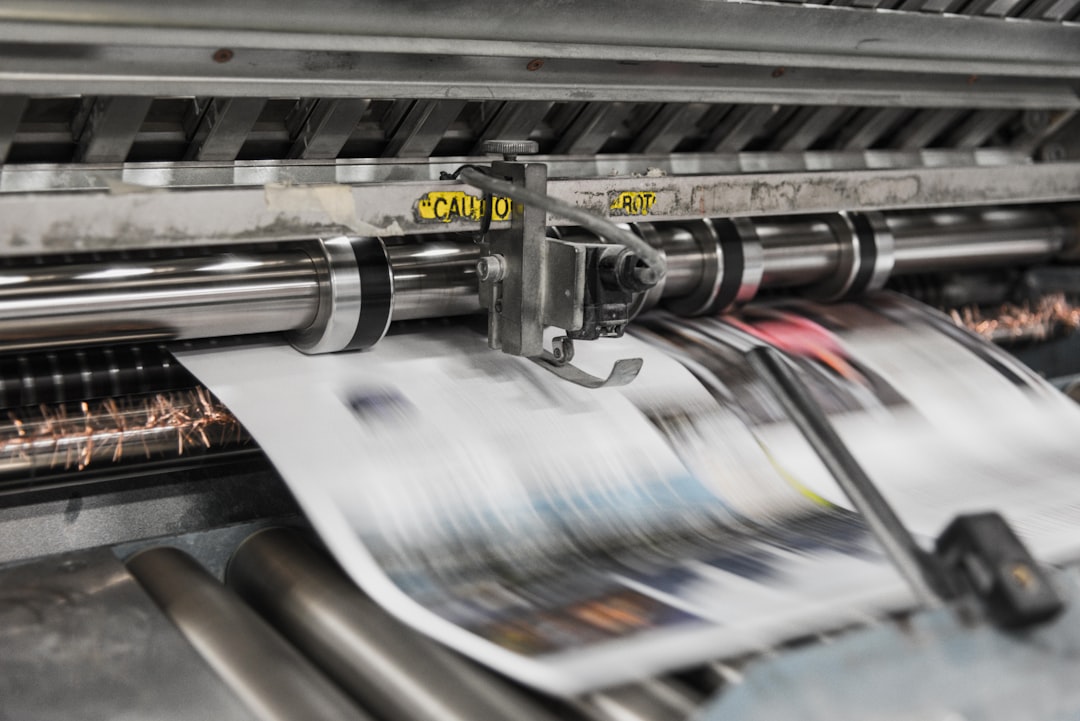
Preparing a file for print is less about memorizing one perfect export preset and more about checking a few variables every time: final size, crop, resolution, color space, file format, and sharpening. This guide gives you a reusable workflow you can return to before every order, whether you are making small photo prints, large poster prints, or gallery-style fine art prints. If you want fewer surprises and more confidence when ordering photo prints online, use this as your preflight checklist.
Overview
The fastest way to avoid disappointing prints is to treat print preparation as a final review, not an afterthought. Most print problems come from a short list of preventable issues: exporting too small, cropping without checking the aspect ratio, oversharpening, using the wrong file format, or sending a file that looks good on a bright screen but is not ready for paper.
Here is the simple idea behind a solid print workflow:
- Decide the final print size first.
- Match your crop to that size’s aspect ratio.
- Check that pixel dimensions are large enough for the intended viewing distance.
- Export in a practical format, usually high-quality JPEG or TIFF depending on the project.
- Apply output sharpening for print, not just screen.
- Review brightness, color, borders, and safe margins before placing the order.
If you only remember one thing, remember this: print settings depend on the product. A social media export, a 12x18 wall print, and a museum-quality art reproduction should not all leave your editing app with the same settings.
For a deeper look at resolution, see 300 DPI Explained: What Resolution Do You Really Need for Printing? and Print Resolution Chart: Minimum Pixel Dimensions for Common Photo and Poster Sizes.
Your universal photo print checklist
- Confirm the product: photo print, poster, canvas, or fine art paper.
- Choose the final size: for example 8x10, 12x18, 16x20, 24x36.
- Match aspect ratio: crop before export so nothing important gets cut off.
- Check pixel dimensions: make sure the file is large enough for the print size.
- Use the right color space: many print labs prefer sRGB unless they specify otherwise.
- Pick the file format: JPEG for most standard photo orders, TIFF when maximum image data matters and the lab accepts it.
- Export at full required size: avoid unnecessary upscaling unless you understand the tradeoffs.
- Apply output sharpening: sharpen for print based on paper type and final dimensions.
- Review brightness: many screens are brighter than paper, so subtle darkening issues can appear in print.
- Check borders and bleed: especially for framed prints and posters.
- Name and organize files clearly: size, finish, and version should be obvious.
- Proof one more time at 100% and fit-to-screen: inspect both detail and overall balance.
Checklist by scenario
Use the scenario below that best matches your order. The core workflow stays the same, but the export decisions shift depending on size, paper, and how the print will be viewed.
1) Standard photo prints for albums, gifts, or everyday display
This is the simplest case and a good baseline for most people ordering photo prints online.
- Best use: 4x6, 5x7, 8x10, and similar sizes.
- Crop first: check whether your image matches the print ratio. A 4x6 print and an 8x10 print do not crop the same way.
- Resolution target: aim for enough pixels to print cleanly at the chosen size. A 300 dpi target is a useful standard starting point for close-viewed prints.
- Color space: sRGB is usually the safest default unless a lab instructs otherwise.
- File format: high-quality JPEG is usually appropriate.
- Sharpening: use light to standard print sharpening. Everyday glossy, luster, or matte photo papers do not need aggressive sharpening.
- Final review: watch skin tones, highlight detail, and shadow density.
If you are unsure how finish affects the look, read Matte vs Glossy vs Luster Prints: Which Finish Is Best for Your Photo?.
2) Large photo prints and custom poster prints
Large prints bring up two common concerns: whether the file is big enough and whether sharpness will hold up on the wall.
- Best use: 16x20, 18x24, 24x36, and other large poster formats.
- Start with viewing distance: a wall poster is usually viewed from farther away than an 8x10 held in hand, so acceptable resolution can be more flexible.
- Check native file size: do not assume a web image can become a clean large print. Verify pixel dimensions before ordering.
- Avoid heavy cropping: a tight crop reduces available resolution fast.
- File format: high-quality JPEG remains practical for most poster printing online workflows.
- Sharpening: use moderate output sharpening, but judge it at the final print intent. Over-sharpened edges look harsh when enlarged.
- Add border awareness: if you want a white border or need room for framing, build that into the final exported dimensions intentionally.
For help choosing dimensions, see Poster Size Guide: How Big Should Your Poster Be for Every Room? and Photo Print Sizes Guide: Standard Dimensions, Aspect Ratios, and Frame Matches.
3) Fine art prints and archival art reproductions
This is where careful export settings matter most. Fine art prints often reveal subtle tonal transitions, paper texture, and edge detail that standard consumer prints may hide.
- Best use: portfolio prints, gallery-quality prints, limited runs, and museum-style reproductions.
- Work from the highest-quality master file: avoid re-exporting from compressed copies.
- Color and tone review: soft gradients, black-and-white files, and delicate highlight detail deserve extra attention.
- File format: TIFF may be worth using if the print lab accepts it and you want minimal compression. Otherwise, a maximum-quality JPEG can still work well.
- Sharpening: paper matters. Cotton rag and matte fine art papers often need a different sharpening touch than glossy or baryta-style papers.
- Bit depth and editing headroom: keep your working file robust during editing, then export according to the lab’s requirements.
- Border and trim consistency: for editioned work, keep image area and border measurements consistent across the set.
Paper choice changes how detail and contrast are perceived. For more on that, see Best Paper for Art Prints: Cotton Rag, Baryta, Pearl, and Matte Compared.
4) Canvas prints
Canvas has its own file-prep considerations because part of the image may wrap around the stretcher bars.
- Confirm wrap style: image wrap, mirrored edges, or colored border.
- Keep important details away from edges: faces, text, and signatures should not drift into the wrap area.
- Sharpen moderately: canvas texture softens fine detail, so a little extra output sharpening may help, but too much can still create brittle-looking edges.
- Check saturation and contrast: textured surfaces can change how micro-contrast feels compared with smooth paper.
If you are deciding between substrates, compare Canvas vs Fine Art Paper Prints: Pros, Cons, Cost, and Look.
5) Client proofs, creator shops, and repeatable product workflows
If you sell prints or prepare files regularly, consistency matters as much as image quality.
- Build export presets by product type: one for standard prints, one for posters, one for fine art paper, one for canvas.
- Use clear naming: filename-size-paper-finish-version.
- Keep a master folder and exported folder separate: this reduces accidental re-exports from compressed files.
- Proof with privacy in mind: if you share previews with clients, use secure links and organized approvals.
Related reading: Protect client privacy while sharing proofs: secure links, access controls, and backups.
What to double-check
This section is your final preflight pass. If the file looks fine on screen but you still feel uncertain, these are the details most worth reviewing before upload.
Aspect ratio and crop
A beautiful image can still fail as a print if the wrong shape is ordered. Camera files often come in ratios like 2:3 or 4:3, while common print sizes may be 5:7, 8:10, 11:14, or 16:20. Each shape crops differently. Before export, apply the exact print ratio and inspect the edges carefully.
Pixel dimensions, not just dpi
Dpi is useful, but the actual pixel dimensions of your file are what determine how much detail is available. A file exported at 300 dpi is not automatically print-ready unless the image dimensions support the final size. Use a resolution chart or calculator when in doubt.
RGB or CMYK
Many people assume print always means CMYK, but that is not always how photo labs want files delivered. In many photo-printing workflows, sRGB is the practical default because it is predictable and widely supported. If a lab gives a specific ICC profile or file requirement, follow that. For a fuller explanation, see RGB vs CMYK for Photo Printing: What File Color Mode Should You Use?.
Brightness and contrast
Screens are often brighter than paper. If your edit only looks right on a luminous display, the print may come back darker than expected. As a habit, review files with display brightness kept reasonable, and pay special attention to deep shadows and near-white highlights.
Output sharpening
Capture sharpening, creative sharpening, and print sharpening are not the same thing. The final output sharpen should reflect the intended print size and paper surface. Matte papers tend to show detail differently than glossy or luster surfaces. A restrained approach usually ages better than trying to force extra crispness.
Compression and file format
For most orders, a high-quality JPEG is efficient and visually reliable. TIFF is useful when you want minimal compression and your printer accepts larger files. PNG is usually not the first choice for photographic printing. Whatever format you choose, avoid repeated saves that gradually degrade the file.
Borders, signatures, and safe margins
If your print includes a signature, caption, or decorative border, zoom out and confirm placement relative to trim and frame coverage. Even small shifts matter more in print than on screen.
Common mistakes
A short list of mistakes causes most avoidable print issues. Keep these in mind whenever you prepare large photo prints, fine art prints, or custom poster prints.
- Exporting from the wrong file: using a social-media-sized image instead of the master export.
- Ignoring aspect ratio: ordering an 8x10 from a 2:3 image without checking the crop.
- Assuming 300 dpi solves everything: the file may still be too small if pixel dimensions are limited.
- Oversharpening: halos and crunchy edges become obvious on paper.
- No print-specific sharpening: the image can look softer than intended, especially on matte media.
- Sending the wrong color mode: especially when the lab has clear file instructions.
- Editing too bright: resulting in dark prints with blocked shadows.
- Heavy noise reduction: skin, skies, and textures can look plasticky in larger prints.
- Over-compressing JPEGs: subtle artifacts become easier to spot in print.
- Forgetting edge loss on canvas or framed products: key details end up too close to the edge.
If you routinely order prints for clients, exhibitions, or product drops, it helps to keep a one-page house checklist beside your export presets. The best print sharpening guide is the one you actually use consistently.
When to revisit
This checklist is most useful when your inputs change. Revisit it before each meaningful print run, especially in these situations:
- You switch products: moving from small photo prints to large posters, canvas, or archival fine art paper.
- You change paper finish: matte, luster, baryta, pearl, and cotton rag each present detail differently.
- You update software or export tools: presets can change quietly over time.
- You adopt a new camera or editing workflow: different sensors and editing defaults may alter sharpening and noise handling.
- You prepare for a seasonal launch or shop update: especially if you are batch-exporting many files.
- You notice recurring print issues: dark shadows, soft detail, color shifts, or inconsistent crops.
For a practical habit, create a simple print-prep routine:
- Pick the final product and print size.
- Apply the exact crop ratio.
- Check pixel dimensions against the target size.
- Export in the lab’s preferred format and color space.
- Apply output sharpening based on paper and print size.
- Proof brightness, borders, and edge safety.
- Save the export preset if you may use it again.
That routine takes only a few minutes, but it reduces the chance of wasting time and money on reprints. Good print preparation is not glamorous, but it is one of the clearest ways to get closer to gallery quality prints with predictable results. When your workflow or tools change, come back to this checklist, update your presets, and test again before your next order.